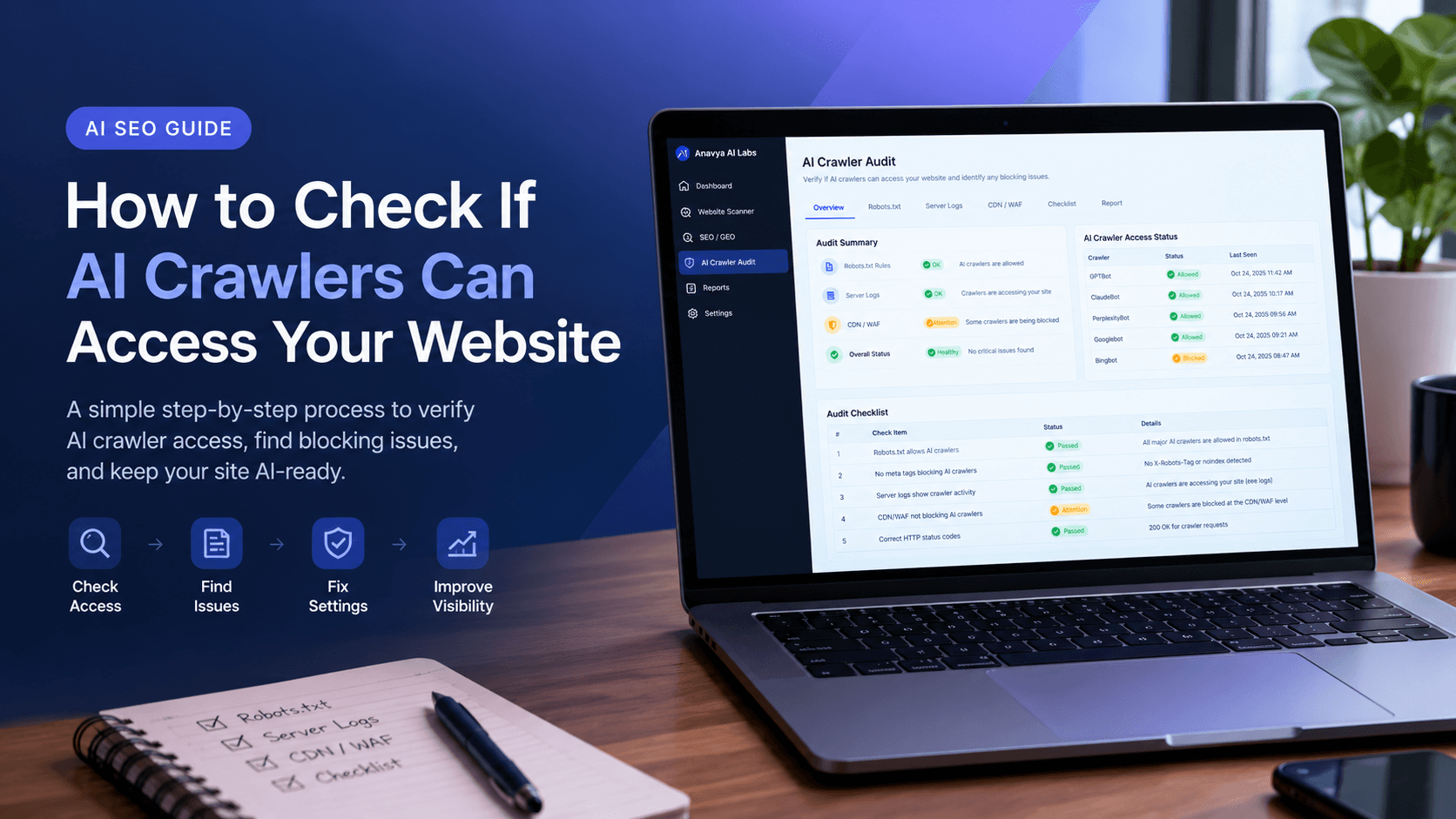
AI assistants increasingly answer questions by drawing on content from the web. Before a system can use your pages, its crawler has to be able to reach them. If a crawler is blocked, misconfigured, or unable to read your content, your pages may be absent from AI answers no matter how good they are.
This guide explains how AI crawlers work, how to check whether they can access your site, and how to diagnose the most common problems. You will need no special tools to start. A text editor, a browser, and a few minutes are enough for the first checks.
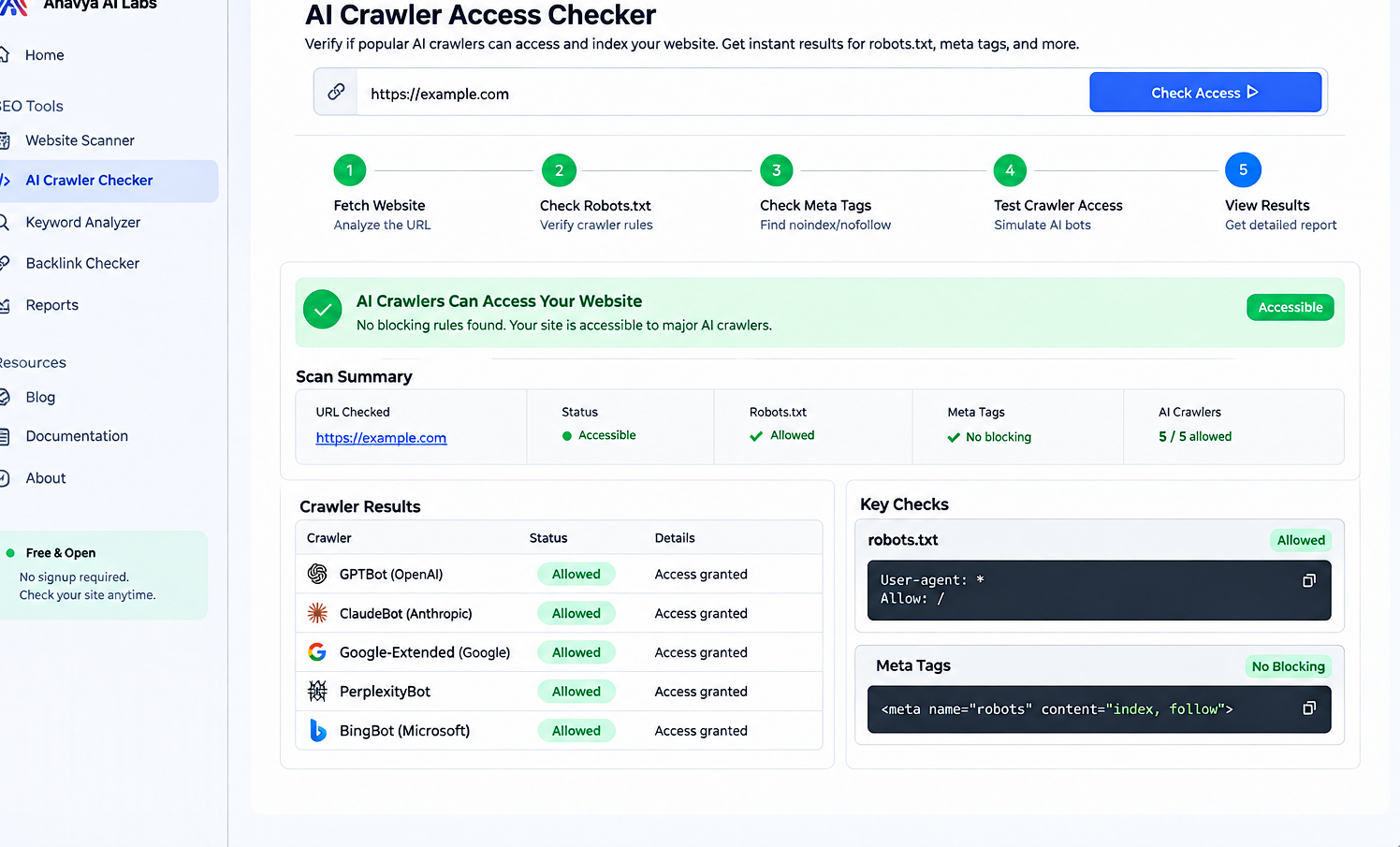
Checking AI crawler access involves four layers: robots.txt, page-level rules, the server or CDN, and the content itself.
How AI Crawlers Work
AI companies operate crawlers that visit public websites. Each crawler identifies itself with a user agent string, a short name sent with every request. Website owners can read these names in their server logs and write rules for them in robots.txt, the file at the root of a domain that gives crawling instructions.
Different companies use different crawlers for different purposes. A common distinction is between crawlers that collect content for training models and crawlers that fetch pages to answer a live question. Some providers also use separate agents for search indexing and for requests made on behalf of a user. The exact names and their purposes change over time, so always check the provider's current documentation before you write rules.
As a rough guide, the crawlers you are most likely to encounter include:
- OpenAI: GPTBot (training), OAI-SearchBot (search indexing), and ChatGPT-User (user-initiated browsing)
- Anthropic: ClaudeBot (training), Claude-SearchBot (search), and Claude-User (user-initiated browsing)
- Perplexity: PerplexityBot (indexing) and Perplexity-User (user-initiated browsing)
- Google: Google-Extended, a control token that governs whether content is used for Google's AI training. It does not affect regular Google Search crawling, which is handled by Googlebot.
- Apple: Applebot-Extended, a control token for Apple's AI training, separate from Applebot used for search features
- Common Crawl: CCBot, a crawler whose datasets are used by many organizations, including AI developers
The distinction matters. Blocking a training crawler and blocking a search crawler have different consequences for how your content is used. Decide which you want to allow before you change any settings.
Step 1: Read Your robots.txt File
Start with the file itself. Open your browser and visit your domain followed by /robots.txt, for example https://www.yourdomain.com/robots.txt. If the page returns a 404 error, you have no robots.txt file, which means no crawler restrictions are set there. That is not automatically a problem, but it means you should check the other layers in this guide.
If the file exists, look for rules that name AI user agents. A rule typically has two parts: a user agent line and one or more directives.
User-agent: GPTBot
Disallow: /

User-agent: ClaudeBot
Allow: /

User-agent: *
Disallow: /admin/
Allow: /
In this example, GPTBot is blocked from the entire site, ClaudeBot is allowed everywhere, and all other crawlers are allowed except for the admin area. Read the rules carefully, because a crawler follows the most specific group that matches its name. If a rule for a named crawler exists, the general * group does not apply to it.
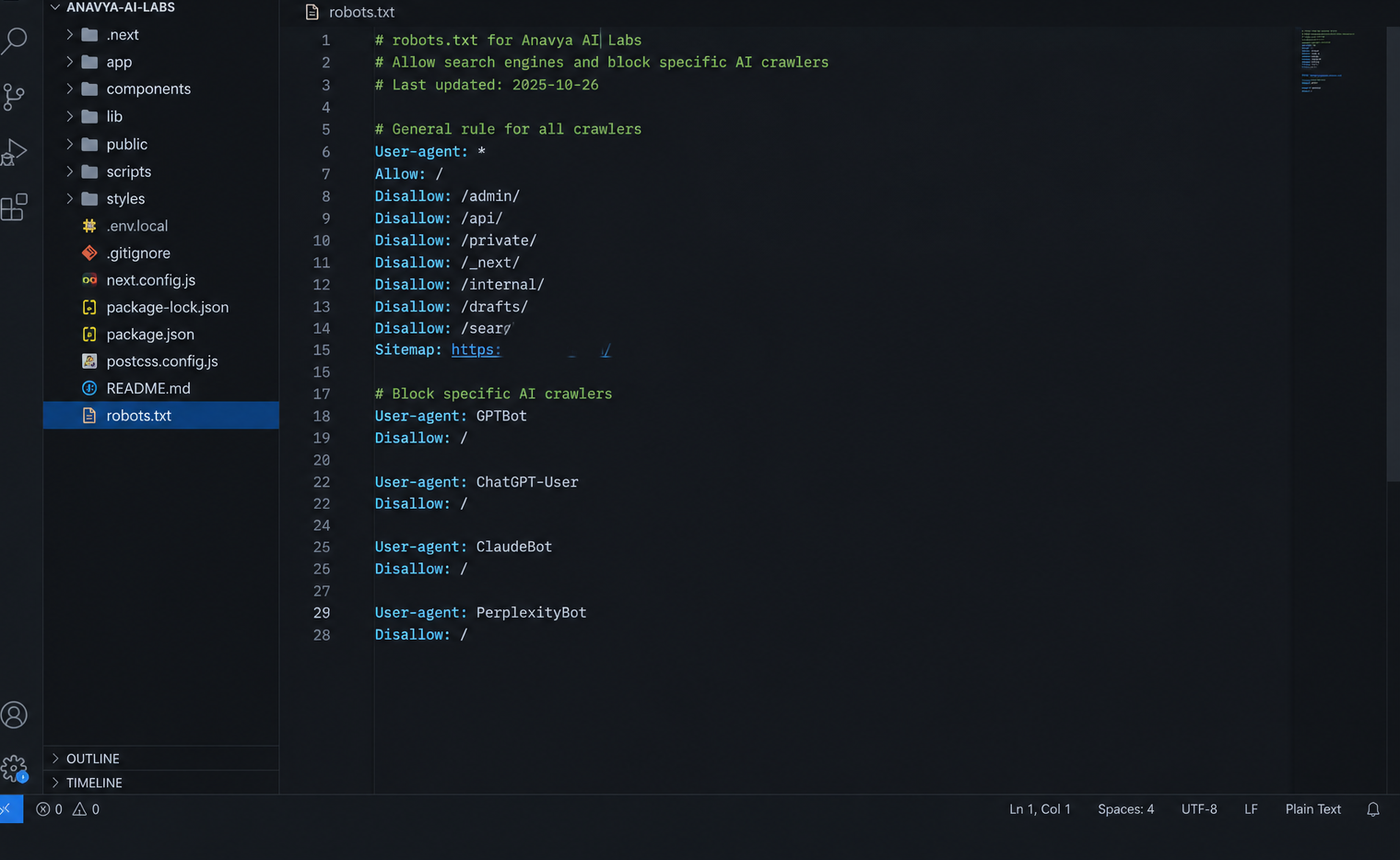
Crawlers follow the most specific matching group in robots.txt, so a named rule overrides the general rule for that crawler.
Watch for common mistakes:
- Blanket blocks inherited from templates. Some website themes or security plugins add rules that block unknown bots. Check whether a rule uses
*withDisallow: /, which blocks everything. - Blocks on important directories. A rule such as
Disallow: /blog/prevents crawling of your content even when the rest of the site is open. - Typos in user agent names. A misspelled name matches nothing, so the rule has no effect. Compare each name against the provider's documentation.
- Syntax errors. Each directive should be on its own line, and paths should begin with a slash.
To test your rules programmatically, you can use Python's built-in robots parser. The script below reads a site's robots.txt and reports whether each AI user agent may fetch the homepage and a sample page.
from urllib.robotparser import RobotFileParser

AI_AGENTS = [
    "GPTBot",
    "OAI-SearchBot",
    "ChatGPT-User",
    "ClaudeBot",
    "Claude-SearchBot",
    "Claude-User",
    "PerplexityBot",
    "Google-Extended",
    "CCBot",
]


def check_robots(site, sample_path="/"):
    parser = RobotFileParser()
    parser.set_url(f"{site.rstrip('/')}/robots.txt")
    parser.read()

    results = {}
    for agent in AI_AGENTS:
        allowed = parser.can_fetch(agent, f"{site.rstrip('/')}{sample_path}")
        results[agent] = "allowed" if allowed else "blocked"
    return results


if __name__ == "__main__":
    for agent, status in check_robots("https://www.yourdomain.com").items():
        print(f"{agent:20} {status}")
Replace the domain with your own. The parser follows the same matching rules as the standard, so the results show what a compliant crawler would do. Keep in mind that robots.txt is a voluntary standard. Compliant crawlers respect it, but it does not technically prevent access, which is why the later steps matter.
Step 2: Check Page-Level Rules
A page can block crawlers even when robots.txt allows them. Two mechanisms do this.
The first is a meta robots tag in the page's HTML head:
<meta name="robots" content="noindex, nofollow">
The second is an HTTP response header, X-Robots-Tag, which applies to any file type, including PDFs.
X-Robots-Tag: noindex
To check a page, view its source and search for robots, or inspect the response headers with a command-line tool. The following command requests a page and prints only its headers:
curl -I https://www.yourdomain.com/your-page/
Look for an X-Robots-Tag line in the output. A noindex value tells search engines not to index the page. Whether AI systems honor the same directive varies by provider, so treat noindex as a clear signal to exclude a page from all public search engines, and review any important pages that carry it by mistake.
Check important pages for accidental noindex tags, especially after a redesign, a staging-to-production migration, or a plugin update. These are some of the most common and most costly crawl problems, because the page works perfectly for visitors while quietly disappearing from search.
Step 3: Test How Your Server Responds to Each Crawler
Robots.txt tells a crawler what it may do. Your server decides what it actually receives. A server or a security layer can return an error, a challenge page, or an empty response to requests from certain user agents.
You can simulate a request from a specific crawler by sending its user agent string:
curl -s -o /dev/null -w "%{http_code}\n" -A "GPTBot" https://www.yourdomain.com/
This command prints the HTTP status code. A code of 200 means the page was served. A code of 403 or 429 may indicate a block or rate limit. A code of 503 can mean the server was unavailable at that moment.
Repeat the test with a normal browser user agent and compare the results. If the browser receives a 200 but the crawler user agent receives a 403, a rule on your server, in a firewall, or at your content delivery network is treating the crawler differently.
Be aware of the limit of this test. It shows how your server responds to the user agent string you send, but it does not prove that the real crawler would be treated the same way. Some providers publish IP address ranges for their crawlers, and some security tools verify them. Use the simulation as a diagnostic step, then confirm with real crawl data where possible.
Step 4: Review CDN and Firewall Bot Settings
Many websites sit behind a content delivery network (CDN) or a web application firewall (WAF). These services protect against abusive traffic, and their bot management features often block automated visitors by default. A setting that stops scrapers can also stop legitimate AI crawlers.
Check the bot management or security settings in your CDN or hosting control panel. Look for:
- Bot-blocking rules that apply to all automated traffic
- Challenge pages, such as CAPTCHA or JavaScript challenges, shown to unrecognized visitors
- Rate limits set too low for normal crawling
- Geographic or IP-based rules that block regions or ranges
If you find a rule that blocks AI crawlers unintentionally, create an exception for the specific user agents you want to allow, and test again with the methods above. Make changes deliberately, one at a time, so you can see which setting made the difference.
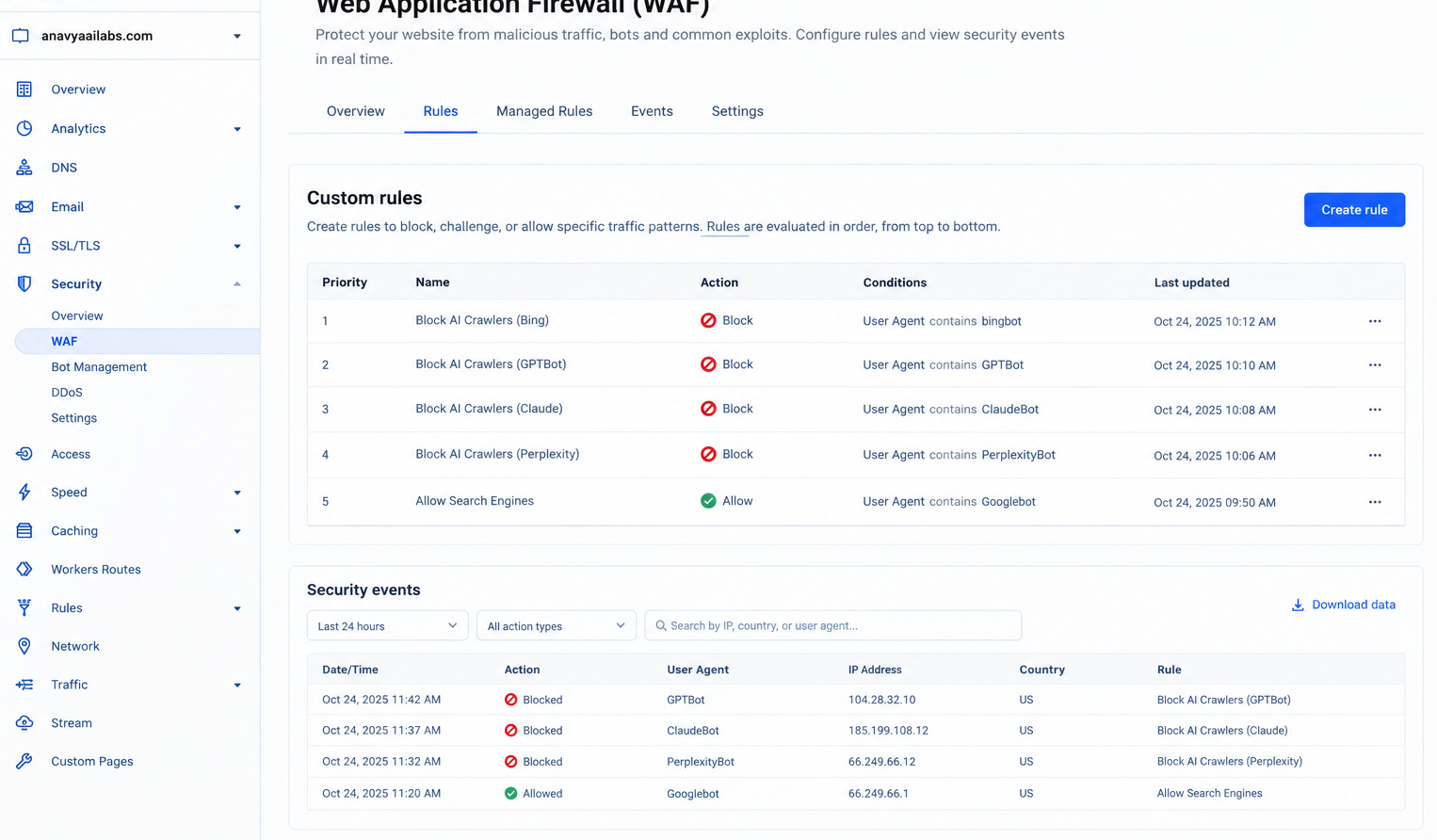
A request can pass robots.txt and still be stopped at the CDN or firewall, so each layer needs its own check.
Step 5: Confirm the Content Is Visible Without JavaScript
Some crawlers read the HTML a server returns and do not run JavaScript, or run only limited rendering. If your main content loads only after a script runs in the browser, a crawler may see an empty or nearly empty page.
To check, use a browser and disable JavaScript in the developer tools, then reload the page. If the main text, headings, and product details disappear, that content depends on client-side rendering and may be invisible to some crawlers.
You can also view the raw HTML with curl:
curl -s https://www.yourdomain.com/your-page/ | grep -i "your key phrase"
If the phrase does not appear in the raw response, it is probably generated after the page loads. The fix depends on your platform. Server-side rendering, static generation, or prerendering usually makes the content available in the initial HTML. Discuss the options with your developer if your site relies heavily on client-side frameworks.
Step 6: Check Your Server Logs
Logs are the most direct evidence of crawler activity. Each request to your server records a timestamp, the requested path, the status code, and the user agent. Searching logs for AI user agents shows which crawlers have visited, how often, and which pages they requested.
On a typical Linux server with an Nginx or Apache access log, you can count requests from a specific crawler with a simple search:
grep -i "GPTBot" /var/log/nginx/access.log | wc -l
For a more useful view, check which status codes those requests received:
grep -i "ClaudeBot" /var/log/nginx/access.log | awk '{print $9}' | sort | uniq -c
This prints the count of each status code returned to ClaudeBot. Many 200 responses suggest the crawler can reach your content. Many 403 or 429 responses point to a block or rate limit.
If you use a hosting dashboard, a CDN analytics panel, or a log management service, the same information is usually available there with a filter for user agent. Look at the trend over several weeks rather than a single day, because crawl activity varies.
Absence of visits is also informative. If a crawler you expect to see never appears in your logs over a long period, check the rules in the earlier steps, and confirm that your sitemap and internal links lead to the pages you want found.
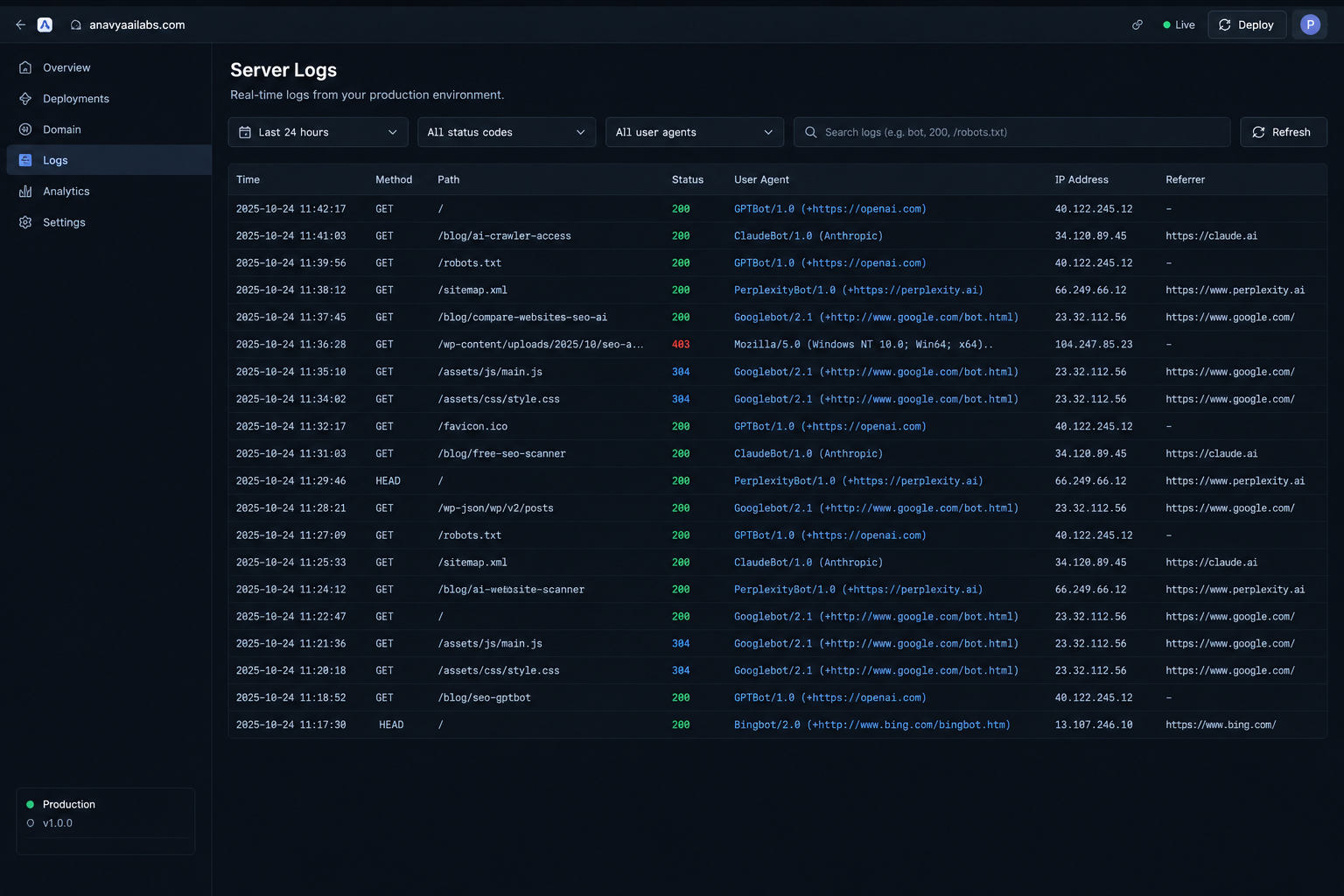
Server logs show which crawlers reached your site and whether they received successful responses.
Step 7: Consider an llms.txt File
Some websites now publish an llms.txt file, a plain-text file at the root of the domain that summarizes the site and points to its most important pages in Markdown. The proposal is an emerging convention rather than a formal standard, and no provider has committed to using it as a ranking or citation signal. Treat it as optional. If you create one, keep it accurate, short, and linked to pages that are already crawlable and well structured.
An llms.txt file does not override robots.txt. If a page is blocked from crawling, listing it in llms.txt does not make it accessible.
Deciding What to Allow
Once you can see what is happening, decide what you want. There is no universal answer, and the right policy depends on your business.
Some organizations want to allow all crawlers, because being cited in AI answers supports their visibility and their audience's discovery. Others want to allow search and user-initiated crawlers while blocking training crawlers, which separates the use of content in answers from its use in model training. Publishers that rely on subscriptions or licensed content may choose a stricter policy.
Whatever you choose, document it. Write down which agents you allow, which you block, the reason, and the date. Review the decision when providers change their crawler names or when your business priorities change.
A reasonable starting policy for many businesses is to allow the search and user-initiated agents for the public pages that sell or explain your offering, keep private areas such as admin panels and account pages blocked, and review the training crawler decision deliberately rather than by default.
A Practical Checklist
Use this sequence when you audit crawler access:
- Confirm robots.txt exists and loads without errors.
- Review rules for each AI user agent, and check for blanket blocks.
- Check important pages for noindex in meta tags or response headers.
- Compare server responses for a crawler user agent and a browser user agent.
- Review CDN, WAF, and bot management settings for unintended blocks.
- Confirm key content appears in the raw HTML without JavaScript.
- Review server logs for crawler visits and status codes over several weeks.
- Document your policy and schedule a review.
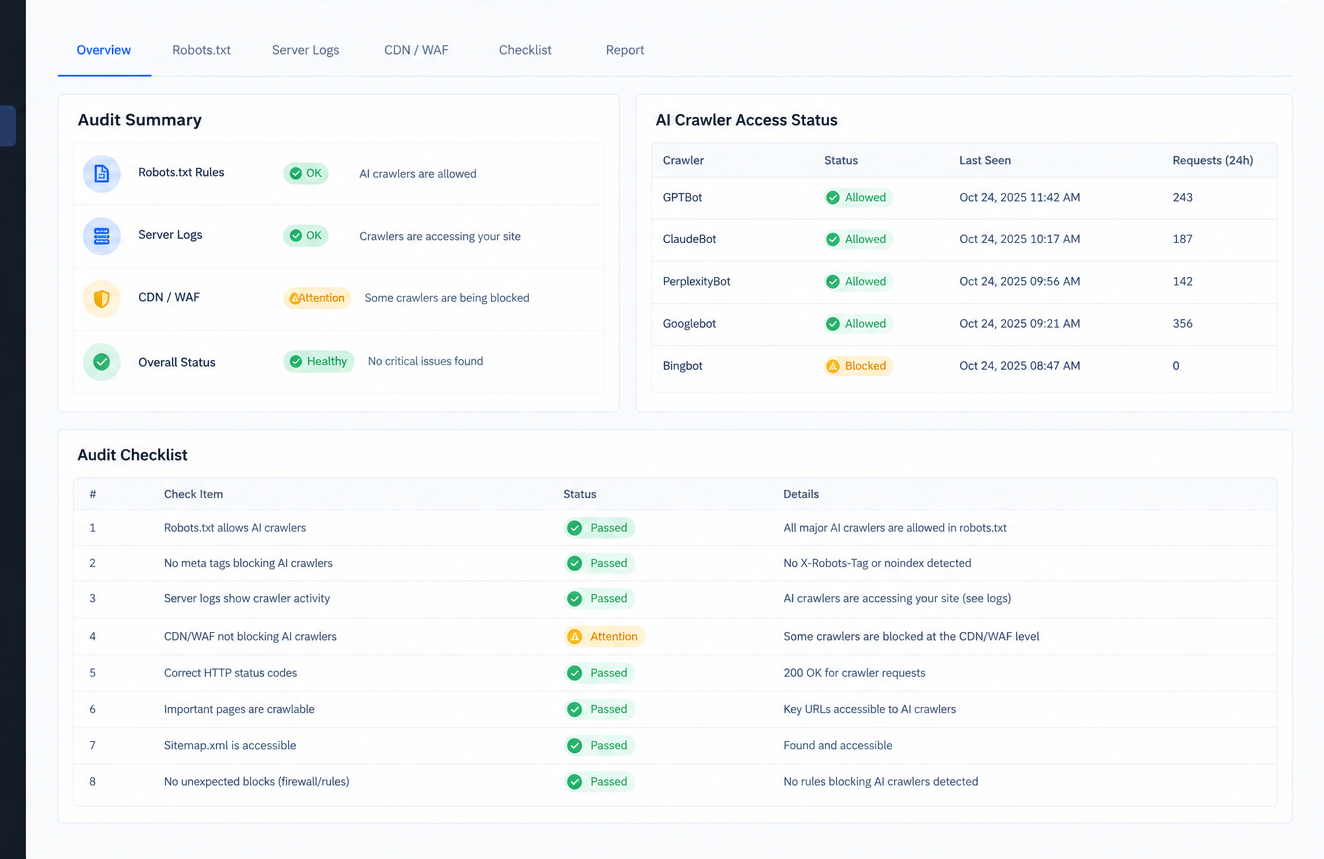
Work through the checklist in order, because robots.txt, page rules, server responses, and content visibility each affect the next.
Frequently Asked Questions
Does blocking GPTBot remove my site from ChatGPT? Blocking GPTBot affects that specific training crawler. Other OpenAI agents, such as OAI-SearchBot and ChatGPT-User, have different purposes, so their rules must be reviewed separately. Check OpenAI's current documentation for how each agent is used.
Will allowing AI crawlers guarantee that my site is cited? No. Allowing access makes citation possible, but it does not guarantee it. Content quality, clarity, structure, and the specific question asked all influence whether a page is used.
How long does it take for changes to take effect? Crawlers revisit sites on their own schedules. A robots.txt change may be picked up within days, but it can take longer before a crawler returns to specific pages. Logs are the best way to confirm.
Is robots.txt legally binding? Robots.txt is a widely respected convention, not a technical barrier. Its legal weight varies by jurisdiction and circumstance. Consult a legal professional if you have specific concerns about how your content is used.
Can I check my site with a tool instead of doing this manually? Yes. Dedicated tools can test several agents at once and report robots.txt rules, status codes, and visibility issues. The manual steps in this guide help you understand what those tools are checking, which makes their results easier to interpret.
What if my site uses a platform that doesn't let me edit robots.txt? Many hosted platforms provide a settings panel for robots.txt or crawler rules. If yours does not, check the platform's documentation or contact support, and look for page-level and CDN-level controls as alternatives.
Conclusion
Whether AI crawlers can reach your site depends on several layers working together: the rules in robots.txt, the directives on individual pages, the responses from your server and security layer, and whether your content is visible in the initial HTML. A problem at any one layer can stop a crawler, and each is straightforward to test.
Start with robots.txt and the page-level checks, then move to server responses, CDN settings, and logs. Once you know what your site allows, make a deliberate decision about which crawlers you want to welcome, document it, and review it as the landscape changes.
Key Takeaways
- AI crawlers identify themselves by user agent, and different providers use different agents for training, search, and user-initiated browsing.
- Robots.txt is the first place to check, but page-level tags, server responses, and CDN settings can block crawlers independently.
- Test server responses using each crawler's user agent, and confirm key content is present in the raw HTML.
- Server logs show which crawlers actually visit your site and what they receive.
- Decide your policy deliberately, document it, and review it when provider names or business priorities change.


